The Remote Control Project of Home shack
== STEP 5 ==

[The last renewal of this page: June 16, 2009]
STEP 5. Adoption of VNC (Virtual Network Computing)
Well, although with the efforts we have done so far, we are now able to operate SSB/AM/FM from the mobile environment PC freely, we are just at around the entrace. There are many functions that I would like to add, but not all of the applications are able to contorol via TCP/IP. So, what attracted me was the VNC (Virtual Network Computing).
What I thought first was if I could work RTTY and SSTV using separate software like MMTTY and MMSSTV, although the Ham Radio Deluxe itself seems to have a terminal function for RTTY, because of additional possibility to work some other digital mode as well.
As MMSSTV and MMTTY do not have capability to be controled via TCP/IP, what makes me easy to realize is to use a software to simply control the screen of the remote PC via TCP/IP. It is getting very common to see so-called VNC (Virtual Network Computing) software anywhere, so I decided to try a freeware, RealVNC.
The VNC has two applications. One is a Viewer, and another is a Server. Run Server on the PC being remotely controled, and run Viewer on the PC on your side and give a control to the other PC. The Viewer is not essentially needed because you can control using a browser.
There are many site where you can download RealVNC at free. After the download, install it following instructions.
After the installation, two icons, one for RealVNC Server, and one for RealVNC Viewer will be on your desktop. RealVNC Server is an application supposed to run on the PC being connected to the radio, and RealVNC Viewer is an application supposed to run on the mobile PC, in this case.
This application use the Port #5900 for communications. (If you use Web browser instead of Viewer, then Port #5800) As you have done with Ham Radio Deluxe, you have to open the relative port at your router and Window's Firewall. You already have your own domain/URL like "jr1maf.mydns.jp" which works as the fixed IP address, you will not need any more new things.
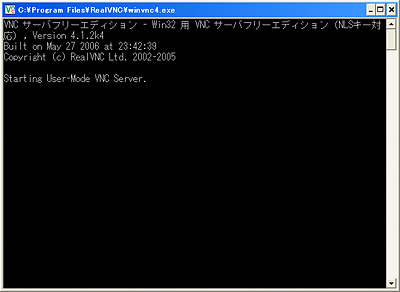
The RealVNC Server should be run all the time on the PC being connected to the radio. This is the window opens after the excution. You make this window minimum size, and leave it there.
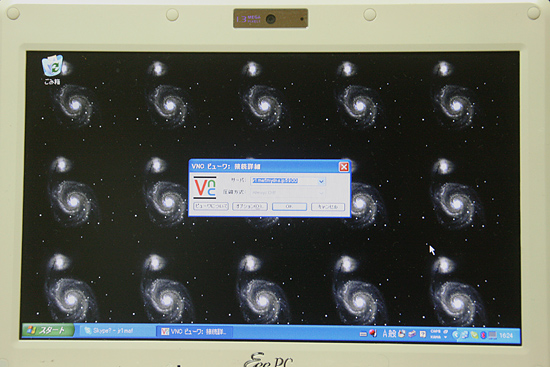
Run RealVNC Viewer on the mobile PC. In the section of "connected to:", enter your domain with port Number like "jr1maf.mydns.jp:5900".
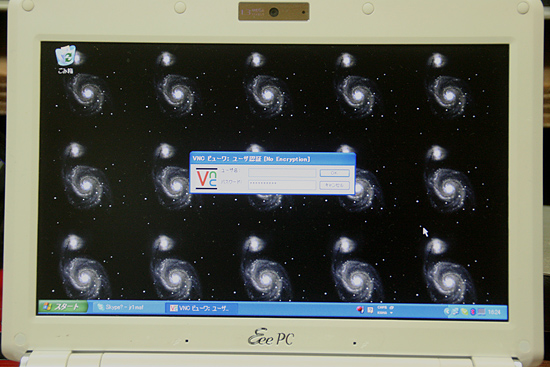
You'll be prompted to enter password, so you enter the password that you have registered when you installed RealVNC Server to the PC being connected to the radio.
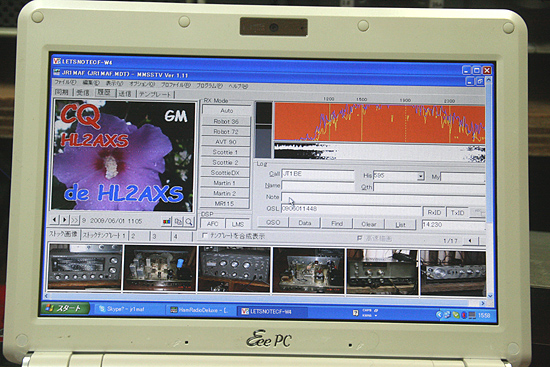
Wow! the screen of the PC being connected to radio is displayed on the mobile PC exactly the same as it is!
I gave it a try to run MMSSTV, and there it is....
However, the speed is extremely slow. Tuning graph and indicater move apparently slowly, very slowly. Received image is not drawn smoothly scrolling down, but drawn in steps little by little.
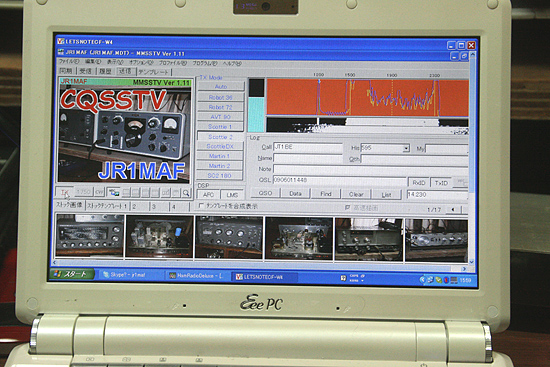
Try to call CQ. It works, and there seems to be no problem at all in its function. If I stand with this speed, it's seems to be Okay. However, considering works that I need for preparing image to send or relative operations, it seems too much slow to accept.
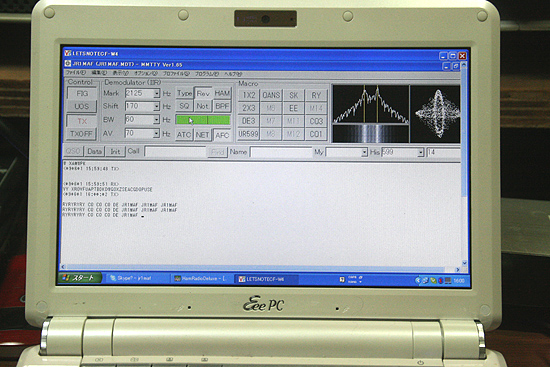
I gave it a try to run MMTTY, next. I called CQ, and everything seems to be fine. The slowness of th speed is the same. It seem to be hard to operate in a pile-up whrere quick operations are required.
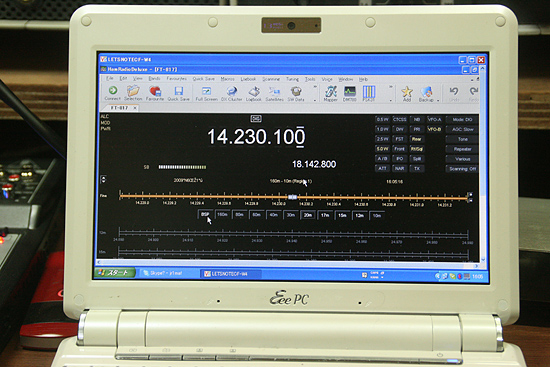
As for the last try, I gave it a try to run Ham Radio Deluxe ( on the PC being connected to the radio through this VNC.) Oh, it runs! I can control it Okay. Well, then, the VNC can do all and no need to run Ham Radio Deluxe on the mobile PC to control its sevrer on the PC being connected to the radio??? The answer is absolutely NO!! You may not accept the speed at all. To move the frequency for 1KHz by clicking digit on KHz order, you have to wait three seconds!! Hi hi.
Conclusion: Nothing is practical with VNC due to its speed. However, it'll be Okay in using it to control something which does not require the spped directly on the PC being connect to the radio. I learned that this would be something we need for limited purposes, and we should keep it on both PCs.
It is said that if the O/S on the PC being connected to the radio is Windows XP "Professional", the attached application for remote control(VNC) works much faster. The problem is the "Professional" is very expensive! I any how have been boulding this system with freesoft only so far. Well, it could be kept as the final method.
== P.S. ==
Later, I got to know that there was an excellent VNC software. That's Ultra VNC.
Basic usage is very similar to Real VNC, so for those who have already tried Real VNC, there may be no problem at all. You can find one of many download sites easily from any searching site.
this Ultra VNC works pretty fast. So, you can enjoy the remote QSO with only Ultra VNC and SKYPE for the audio communication without using Ham Radio Deluxe.
Especially when you try to access from one of the PC in your home LAN in your shack, you may accept its speed which is a little bit slow, and it'S good enough for SSTV or RTTY operation as well.
If you use it from the mobile PC, the speed will be much slowered, but much better than that of Real VNC. Operation of SSTV may not be impossible, but you have to be prepared for the stress. The frequency control may be acceptable as long as you understand its slow reactions.
Anyhow, it is true that the VNC is eating a lot of power of your PC, and you have to manage the combination of method so that the SKYPE comunication (It's essential!)never be efected badly.
It's comfortble if you use it on the PC in your home LAN in your shack. I am always doing some work using a PC, so it is very convenience to be able monitor the band, control the radio, and even enjoy QSO! Only the problem is that the fans(automatic control by temprature) are working very hard making noise as the VNC is eating a lot of power.
Anyway, the best operation style seems to be something like "Operation with Ham Radio Deluxe & SKYPE + Control antenna rotor or powerline swithes by running VNC temporarlily, and shut it down after the control."
 In case you hit this page directly from a Search Engine, you can reach to all of the pages of MAFNET from Top Page