The Remote Control Project of Home shack
== STEP 4 ==

[The last renewal of this page: June 14, 2009]
STEP 4. Control the radio from the Mobile PC
Well, now, a challenge to the access from the mobile PC. All you have to do is to realize the same things that you have already achieved, with a PC being out of the Home LAN.
We are faced to two important themes here. One is that you need to get a fixed IP address. Another thing is to open the port of your router, and to open the port for Windows firewall. These were most difficult poit to understand for me, and I needed to learn and spent a lot of time. Now, that is not a problem for me anymore, but at the beginning, it was hard to understand its concept or general idea, and I was almost giving up my mind, hi hi.
(1) Fixing the IP Address
A fixed IP address is absolute address on the Internet. All the objects to access on the Internet have their own IP address. This job is done by DHCP servers on the Internet. The DHCP servers read entered URL (like http://www.mafnet.jp/roman.index.htm) and pick up the relative IP address for each URL from their database, and translate it to the real IP address. We never recognize their existance, but they are, and doing a great job all the time for us to establish communications on the Internet.
Now, your PC, being connected to the Internet, it is regret to say, it normaly does not have any fixed IP address, except you have special arrangement with your provider, paying additional fee for it. Your provider is allocating one of the fixed IP address they keep for each moment. In another word, a provider also has a DHCP server within itself, and managing it in dynamic.
On the other hand, a similar thing is done within your router. A router has its own DHCP server function, and allocate certain IP address to the PC being connected to the Home LAN. These address are only available within a local network and nothing to do with the outer world. This is called Local IP Address. (It showed up in STEP3.)
When you try to access from your Home LAN toward the Internet, the destination's IP Address is needed, but it is given by DHCP server according to URL that you have entered. The problem is, when you try to access from the Internet to your PC at home. That is because you need a fixed IP Address which is commonly understood on the Internet.
So, what we need here is so-called "Dynamic DNS Service". All you have to do is to register yourself(your URL/Domain like: jr1maf.mydns.jp) at certain organization, and keep access to that organization in certain periods continuously. They will check your IP Adress(not fixed, so it may change in certain time), and they rewrite the DHCP server's data for your domain with the present IP Address. As a result, using you domain, it works as if it had a fixed IP Address. Many organizations are providing this service in free!
I used this one: http://www.mydns.jp/
Please check the above site. After the registration of your URL/Domain, you have to run OUTLOOK (Mail application) all the time setting auto mail check function on with more than five minutes interval, so that the OUTLOOK would access to the organization (to the designated mail server) every few minutes, resulting they could know your current IP Address. They will rewrite the DHCP server at once for you.
So, with this method, you get the same effect as you get a Fixed IP Address.
The first barrier was cleared now. Next is to open the ports of you router and Windows.
(2) Open the port of the Router
Well, at last we came here. I spent many hours to clear this because I tried to resolve the problem with my own style.
A router considers all the incoming access is injustice according to its wickedness theory. Fundamentally, it blocks the communication with the Internet, and does not let us do it. It is something like a barrier which allows only those who are authorized go. The barrier is called a port, and exist many ports being prepared with different port numbers. What we have to do is to certain number of port to be free to pass for our "unusual" communications through the Internet. This action is called "opening the port". Web browsing or e-mail transfer are very basic transactions, so the port 80, which those transactions use, is opened as a default in all routers.
Well, the port which Ham Radio Deluxe uses is 7805 as a default. So, your next step is to open the port #7805.
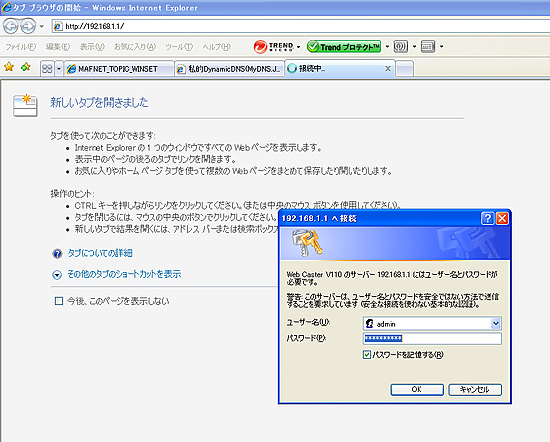
Access to the setup window of your router. The way to do it is written in the manual of the router, but normally, run the browser, enter local IP address "192.168.1.1" to the URL section.
Then, you may be prompt to enter password. (Please refer to the manual for your router for this.)
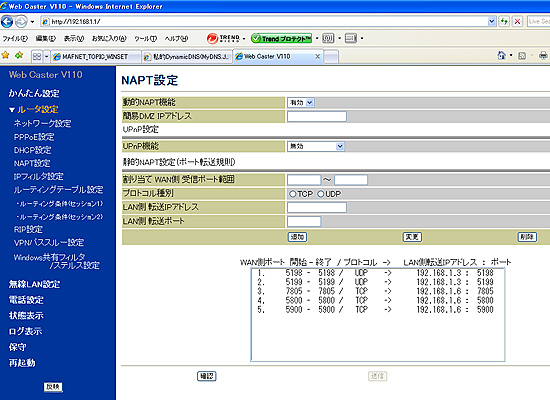
In case of WebCasterV110, (NTT's standard router for their optical fiber service, B Filets), select "Setup Router" at the menue.
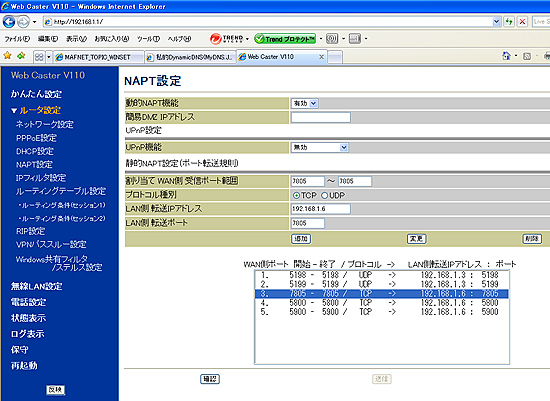
"Set up NAPT" is the menue to select next. These technical terms are very different from manufacturer to manufacturer, and this makes this kind of setting very very difficult. My best advice for you is to call up custmer center of the router by telephone and ask them "Please let me know how to open a port!" Sticking in to your own style may sometime leed you to the marsh.
It worked with selecting "TCP" for the protocol. Enter the Local IP Address to the IP Address section. (It is for the router, and therefore Local IP address is good enough.) Statement should be something like "Open from Port #7805-#7805 to #7805". Then click Append --> Transmit --> Reflect. The router is rebooted and run again about a minute later with a new setting. That's it! That's it, but .... I could not reached here in the beggining, and spent a lot of time doing something incorrect, hi hi.
(3) Open the Port of Windows' Firewall
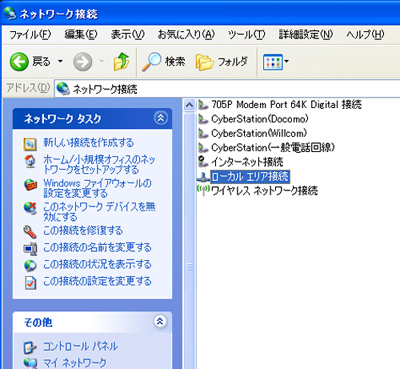
Select Network Connection at the Control Panel.
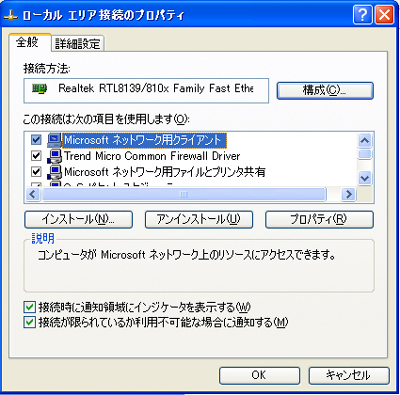
Right click at the Local Area Connection to open the property.
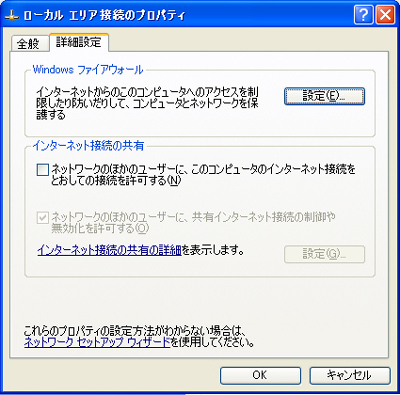
Select a tub for Detail Settings, and select Setting Window's Firewall.
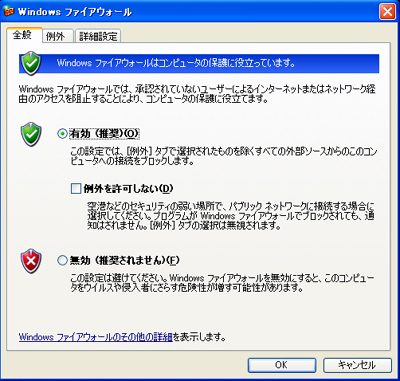
Confirm the check is on at the Firewall is active, and select the tub of Exception.
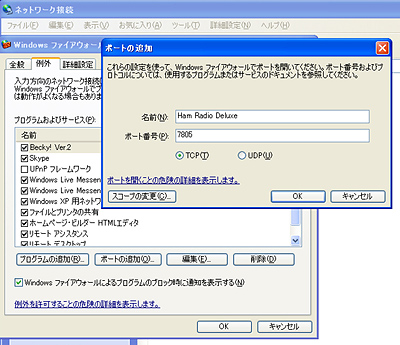
Select Add Ports, and enter the name of aplication, Port Number 7805, and select TCP as a protocol.
That's all. All of these were most difficult steps, but after having passed them, that was nothing at all. If I could find some site where the procedures were well explained like here, it would have not been like this, may be.
Now, give it a try! The SKYPE which we use to transfer audio signals for this projects is very nice software that use Port#80, the same port as Web browser, therefore, you have nothing special to do for it.
Insert the EMOBILE's wireless data communication card into USB port of ASUS's mini-PC. The EMOBILE is providing a very quick communication speed which is up to 7Mbps(download), and enable us to realize ADSL class comfortable internet access. I bought this card in March 2009, and have been very much satisfied with this. ( I could even access the EchoLink server, from the vehicle driving on hiway, and access to overseas node to enjoy DX-QSO manytimes very stabley. No more antenna and radio, for the mobile QSO??)
ABR>
Run SKYPE and call SKYPE name of PC which is connected to the radio at my shack. As auto response is already set, since the same moment of the connection...... How's that? I am always setting my radio at 14.230MHz to minitor and save beautiful SSTV images, so the typical sound of modulation of SSTV started to coming out from the speakers! It's a moment of impression!
Next, run Ham Radio Deluxe. After it runs, perational procedures are the same as when you did it from the PC on the Home LAN. Here comes the control panel of FT-817! Lovely! Wonderful! Using mouse and cursol keys, tuning the receiving frequency up and down.... Wow, great!! There you are!!
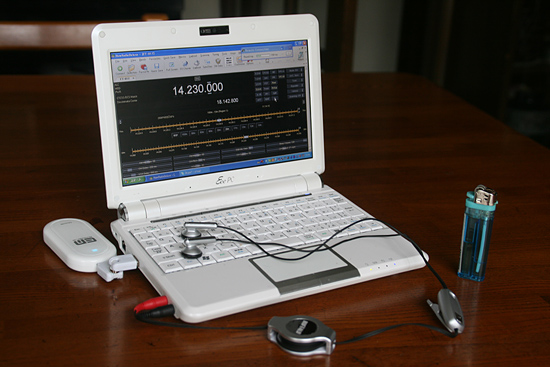
I found a JA6 station who was sending a final on around 14.130MHz, and when he finished QSO, try to give him a shout.
Click the TX button let the radio transmit, and another click to stand-by. Oh, he calls me back!!! To my surprizing, he said "You are booming in, 59+ !" He was surprized when I told that I was controling my home shack remotely from a mobile PC. "You have no difference at all with a normal base station. Audio is really excellent..." Well, this was my first QSO via remote with a laptop PC communicating through mobile wireless card.
In the next day, I was in a passenger seat of the car of my local friend, showing him my mobile PC system. We were driving in the town, and I happened to give a call to VR2XMT, Charlie who was calling CQ on 14MHz, without any expectation to be called back, because I just wanted to show my frined who is driving the car how to do it as a demonstration. But, he calls me back!! That's not a long QSO, but he did not recognize that I am controling remotely all the way.
The first step of my dream, QSO remote controled by a mobile PC was thus realized successfully! If I take this mobile PC system with me, wherever I go in the world, I will be able to use my home shack. (Of course, in oversaeas countries, Internet connection will be made using wireless LAN or cable LAN of Hotels.)
 In case you hit this page directly from a Search Engine, you can reach to all of the pages of MAFNET from Top Page